 Glowproof
How to hide photos on iPhone and lock the Hidden album
To hide a photo on iPhone, open it in Photos, tap the more button, choose Hide, and confirm. It moves to the Hidden album, which iOS can lock with Face ID, Touch ID or your passcode. You can also hide the album itself. Hiding keeps photos out of casual view, but it is not encryption of everything on the phone.
Coming soon to iPhone
How do you hide a photo?
Apple documents this in the iPhone User Guide section on deleting or hiding photos. The steps are short.
The photo disappears from the main library, from Collections and from Memories. It sits in the Hidden album instead, and you can bring it back with Unhide.
- Open the Photos app and open the photo, or select several.
- Tap the more button, the three dots, or touch and hold a thumbnail.
- Tap Hide, then confirm Hide Photo.
Where is the Hidden album?
Open the Albums tab, scroll down to Utilities and tap Hidden. On recent versions of iOS the album is locked, so you will be asked for Face ID, Touch ID or your passcode before it opens. If you do not see it, the album may be hidden, which is the next step.
How do you lock or hide the album?
Go to Settings, then Photos. Look for the switch that controls whether the Hidden album is shown. Turn Show Hidden Album off, and the album disappears from Utilities. To see it again, turn the switch on. Check the authentication option for the album in the same place, and use Face ID if your phone supports it.
Hiding the album makes it harder for someone casually browsing your phone to notice that a Hidden album exists. It does not stop someone who knows to look and has your passcode.
What does hiding not do?
Honesty about the limits helps you choose the right tool. Hiding is a privacy convenience, and a few things remain true.
If the photos are truly sensitive, consider keeping them outside the Photos library.
- Photos still count toward your storage and may sync to iCloud with your library.
- Someone who knows your passcode can see them.
- Photos you share elsewhere, or screenshots, are separate copies.
- A backup of your phone contains them unless you exclude Photos.
- Hiding does not hide the fact that you took a photo from other apps you have given Photos access.
Why does this matter for skin photos?
Skin photos are close-ups of your face, often taken without makeup, and people feel protective of them. A progress diary of selfies in your main library mixes them with holiday pictures, shared albums and memories. A shared album, a slideshow on a TV or a friend scrolling through your phone can expose them by accident.
Hiding is a quick fix. A separate place is a better one.
What is a better place for sensitive photos?
An app that stores photos in its own private storage keeps them out of the Photos library altogether. Glowproof, an iPhone skin photo diary in development, works this way. Photos, notes and tags stay on your iPhone inside the app, with no account and no server for them. Photos skip iCloud backup by default, and the app storage is protected by iOS Data Protection. You can export a zip of your photos and a JSON file of your notes from Me, Privacy and data, and you can delete everything there too. See private and on device for what is kept and what leaves the phone.
The trade-off is that there is no cloud sync, so export before you change phones.
How do you use Save to Photos safely?
Glowproof asks for permission to add to Photos only when you tap Save to Photos, and the permission is add-only, which means the app can write an image and cannot read your library. Use that for a Glow Card you want to post, not for the daily diary photos. Then hide the saved image if you wish.
What should you check on a shared phone?
Look at shared albums, People and Pets suggestions, widgets and the lock screen. Turn off photo widgets that pick random images. Use a strong passcode and Face ID. If someone else uses the phone often, keep sensitive photos out of the Photos app entirely.
How do you unhide a photo?
Open the Hidden album, authenticate, select the photo, tap the more button and choose Unhide. The photo returns to your main library in its original place by date. If you hid a photo by mistake, this is the quickest way back. Do it before you share your library with someone, since unhidden photos appear in Memories and widgets again.
What happens when you delete a hidden photo?
It moves to Recently Deleted, which on recent versions of iOS is locked in the same way. It stays there for a period before it is removed for good. If you want a sensitive photo gone, delete it, then delete it again from Recently Deleted. Remember that copies in backups and shared albums are separate. Check each place if the photo matters.
Can apps see your hidden photos?
Apps that you give full access to your library can generally read what the library exposes. Hidden photos are kept out of the normal library views, and recent versions of iOS restrict how apps reach them. Because this behavior changes between versions, treat hiding as protection against casual viewing and not against software you have granted wide access. When an app asks for Photos access, choose Selected Photos if it is offered.
What should you do before handing over your phone?
Take a minute to check what a casual viewer would see. Open Photos and look at the main library, Memories, Featured Photos and the widgets on your Home Screen. Lock the Hidden album, close the Photos app and make sure Face ID is on. If you let a child play with the phone, consider Guided Access, which keeps the phone inside one app. A short check beats an awkward surprise later.
Frequently asked questions
How do I hide photos on iPhone?
Open the photo in Photos, tap the more button, choose Hide and confirm. It moves to the Hidden album.
How do I lock the Hidden album?
On recent iOS versions the album is locked with Face ID, Touch ID or your passcode by default. Check Settings, Photos.
Can I hide the Hidden album itself?
Yes. In Settings, Photos, switch off Show Hidden Album. Turn it on to see it again.
Do hidden photos sync to iCloud?
They sync with your library if iCloud Photos is on, and hidden status carries across your devices.
Where can I keep skin photos outside the Photos library?
In a private journal app that stores photos in its own storage, such as Glowproof, which keeps them on the device with no account.
Keep exploring
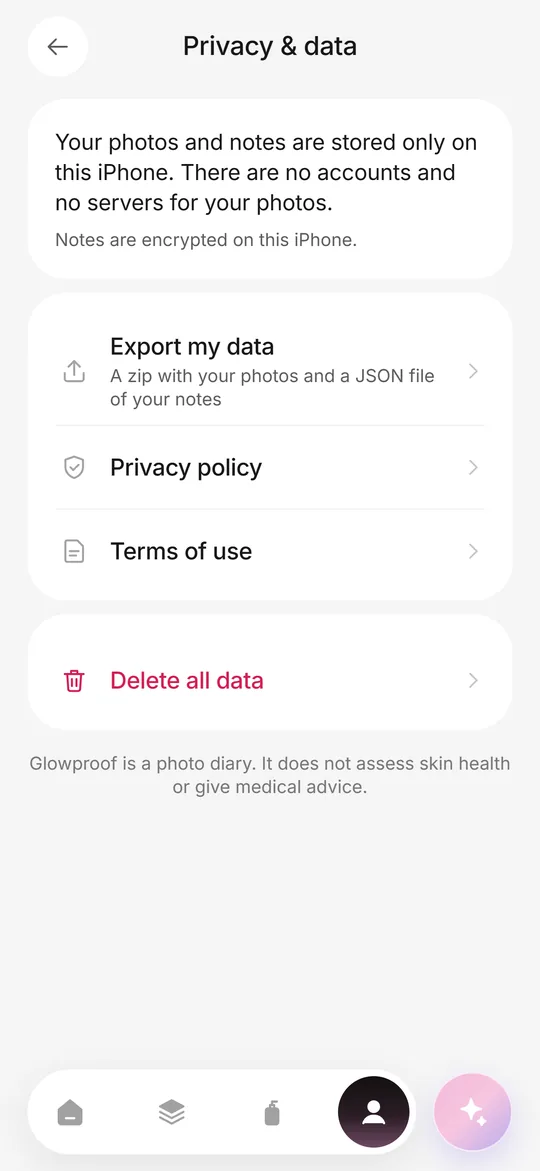 Private on deviceNo account, no photo server, iOS Data Protection, export and delete from the Me tab.Private Photo Journal App for iPhoneEight questions to ask before putting personal photos into a journal app, with what good answers look like.
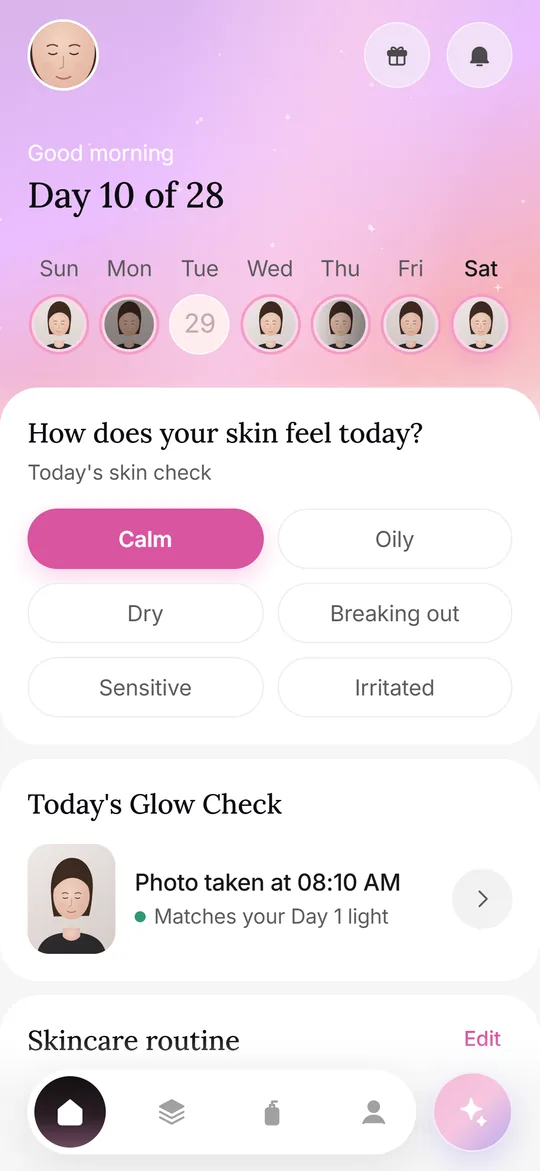 Photos at homeA repeatable home setup: spot, light, distance, angle, timing and a Day 1 reference.Tracker app or journalPaper, notes, camera roll or app: strengths, weak spots and five privacy questions.